How to Make a Parrot Dance Video (Step by Step)
Make a parrot dance video from one photo in three steps: the photo that works, which of the four templates to pick, the 720p 9:16 output and the fixes.
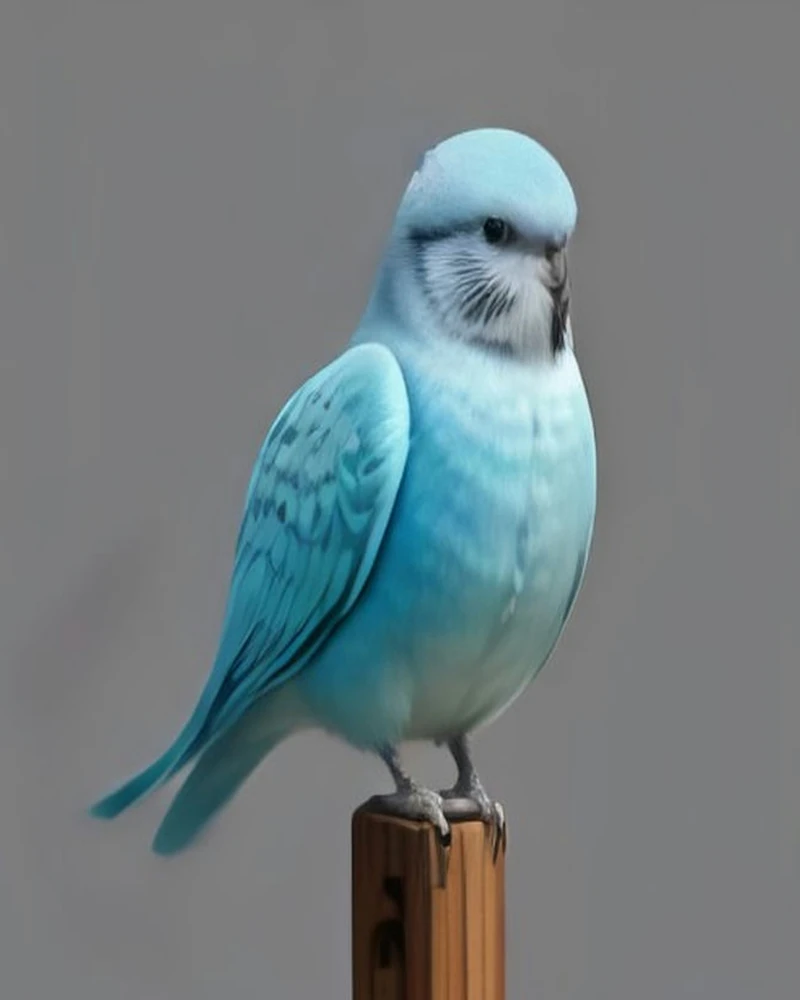
You need two things: one clear photo of one parrot, and one short dance clip. The photo sets identity, the clip sets motion, and Parrot Dance AI returns a 9:16 720p MP4 as long as your dance clip — up to 15 seconds on Standard, up to 30 on Premium.
That is the whole workflow, and it takes one sitting. Most of the work is in the first input — a photo that gives the model enough detail to keep your bird recognisable — and most of the disappointment comes from skipping that step. This guide walks through all three steps with a pass-or-fix check after each one, then the exact specs you should expect, the failure modes worth knowing before you spend a credit, and a publishing checklist for when the file is in your downloads folder.
If you want the background first, the trend explainer covers where the format came from. If you only want to pick a dance, the template library shows all four routines in motion.
Key facts
- Inputs: one photo of one parrot, whole body in frame, up to 10 MB, plus one dance clip.
- Dance source: one of four templates — Party Strut, Bam Bam Bounce, Wing Flare, Tail Sway — or your own MP4 or MOV clip of 2–30 seconds, up to 40 MB. Clips over 15 seconds need Premium.
- Output: 9:16, 720p MP4, as long as the dance clip — up to 15 seconds on Standard (Seedance 2 Fast) or 30 on Premium (Seedance 2.5) — with the template's royalty-free music on template renders and no watermark.
- Cost: Standard costs 5 credits per output second; Premium costs 2. A 13-second dance costs 65 credits on Standard or 130 on Premium. Packs: 100 credits for $10.00, 240 for $20.00, 650 for $50.00, one-time. Credits never expire and failed renders are refunded.
- Audio: the trend's original Jamaican Bam Bam recording is not licensed to us, so you add that sound inside TikTok or Instagram after downloading.
- One bird, no people. The model renders a single parrot; it is not a pet-swap or face-swap tool.
What you need before you start
Two files and a credit. The specs below mix the hard limits the tool enforces with the quality rules that decide whether the render is worth posting.
The photo
| Requirement | Value | Why it matters |
|---|---|---|
| Birds | Exactly one parrot | A second bird or a mirror can produce a stray bird in the render |
| Framing | Whole body in frame | A cropped head or wing removes the part the dance has to move |
| Focus | Eyes and beak sharp | These are the identity details the model re-draws every frame |
| Light | Even, with no strong backlight | Backlighting flattens the plumage and loses the barring and cheek patches |
| Background | Simple, and not full of straight lines | Cage bars and shelf edges are where warping shows first |
| Format | JPG, PNG, WebP or HEIC | Anything else is refused before a credit is spent |
| Size | Up to 10 MB | A normal phone photo is well inside this |
The dance clip
| Requirement | Value | Why it matters |
|---|---|---|
| Format | MP4 or MOV | MKV and other containers are rejected |
| Length | 2–30 seconds | The clip sets the render length; clips over 15s need Premium |
| Size | Up to 40 MB | A 20–30s 720p phone clip is usually 20–40 MB |
| Shots | One continuous shot, no cuts | A cut in the reference can become a cut in the render |
| Subject | One bird's body moving | Human choreography is the main cause of arms appearing on a parrot |
| Camera | Steady, no zoom | A moving camera makes the model move the bird instead of the scene |
If you are using one of the four templates, none of this applies: the clips are already cut to 11–20 seconds, already bird-body movement, and already carry a royalty-free music track. The 11-second Party Strut and 13-second Tail Sway render on Standard or Premium; the 19-second Bam Bam Bounce and 20-second Wing Flare need Premium. The requirements above are for the upload path. Our templates are credited third-party AI-generated reference clips used as motion references, with their original audio replaced by our own royalty-free beat — placeholder footage until we ship our own renders.
The credit
A render costs credits according to its tier: Standard charges 5 credits per output second, Premium charges 2, so a 13-second dance costs 65 credits on Standard or 130 on Premium. Credits are bought in packs and do not expire, so there is no deadline pressure once you have them. A render that fails is refunded in full to your balance automatically; you do not have to open a ticket or email anyone.
Step 1 — Prepare the photo
The model treats the photo as the identity reference. Every frame it generates has to agree with that photo on species, feather pattern, beak shape, eye ring, crest and background. The more clearly the photo states those things, the less room the model has to drift.
- Open the photo at full size and zoom into the head. If the eye is a soft blob when you look at it pixel for pixel, the model is guessing. A sharp eye and a clean beak edge are the two details that keep the bird looking like your bird.
- Crop to the bird, but not tight. Leave a little space around the wings and tail. The render has to move those parts, and a bird that fills the frame edge to edge has nowhere to move.
- Look for a second bird. Reflections count. A mirror behind the perch is a common cause of a mystery parrot appearing in the background of a render.
- Look for hands, perches held by hands, and people. The tool renders one bird and no people. A hand at the edge of the frame is not a feature; it is noise the model has to explain.
- Check the light. Window light from the side is ideal. A bird in front of a bright window is a silhouette, and a silhouette has no plumage detail to preserve.
- Export at the largest size you have. Do not send a screenshot of a photo, and do not send a messaging-app copy if the original is available; those re-compress the feathers.
Success criteria for step 1
You are ready to move on when all of these are true:
- One parrot, and only one parrot, is visible.
- The whole body is inside the frame, including the tail tip and both feet.
- The eye is sharp when you zoom in, and the beak edge is clean.
- There is no hand, person, cage bar across the face, or mirror in the frame.
- The file is JPG, PNG, WebP or HEIC and under 10 MB.
If any of those fails, fix it before spending a credit. Re-shooting takes a minute; a render based on a weak photo takes a credit and produces a video you will not post.
Step 2 — Choose the dance
There are two paths here, and they produce different results. The four templates are bird-body reference clips designed to survive the translation into a parrot. Your own clip lets you choose the motion, but it also lets you choose motion the model cannot map onto a bird.
The four templates
| Template | What it does | Best for | Length | Tier |
|---|---|---|---|---|
| Party Strut | Night-party steps and bounces on the beat, with a little swagger | Any species; the trend's most viral look | 11s | Standard or Premium |
| Bam Bam Bounce | Head and body bob on every "bam bam" beat | Any species; the safest first render | 19s | Premium only |
| Wing Flare | Wings lift and half-spread on the beat, with a half spin | Macaws, amazons and other big-winged birds | 20s | Premium only |
| Tail Sway | Body and tail swing side to side with tiny steps | Budgies, lovebirds and small parrots | 13s | Standard or Premium |
The order matters less than the body type. A cockatiel's crest is the most expressive thing it owns, and Bam Bam Bounce gives the model the biggest silhouette change to work with. A macaw's wings are its biggest feature, so Wing Flare is the one that looks like the bird is showing off. A budgie is small and quick, and Tail Sway keeps the motion inside a range that reads at phone size. Bam Bam Bounce is the safest because it is the one move every parrot body can do; Party Strut is the one to reach for when you want the trend's most viral look. On tier, the two shorter templates can render on Standard or Premium; the 19- and 20-second ones require Premium, because Standard stops at 15 seconds.
Your own clip
Upload a clip when you want a specific move, a specific rhythm, or a dance the templates do not cover. Use an MP4 or MOV of 2–30 seconds, up to 40 MB, with one dancer and a continuous shot. The dancer can be a bird or a person; you need permission to use the clip and consent from anyone shown. Clips of 15 seconds or less can render on either tier; anything longer requires Premium.
The clip does not have to be a trained performance. A parrot bobbing on a perch, lifting its wings, or swinging its tail is enough. What the model needs is a clear, repeating motion with a visible body — not a professional dancer.
Human choreography can also guide the dance, but moves involving shoulders, elbows or hands are harder to translate to a bird and can produce extra limbs or other artifacts. The result is an approximation. The technical explainer covers the mechanism and its limitations.
Success criteria for step 2
- The reference is one of the four templates, or an MP4 or MOV of 2–30 seconds and up to 40 MB (over 15 seconds requires Premium).
- The clip shows one dancer moving for at least two seconds, with no cuts.
- You have permission to use the clip and consent from any person shown; no minors or public figures appear.
- The camera is steady and the dancer stays in frame.
- You have watched the clip once at normal speed and can name the move it shows.
Step 3 — Render, check the file, download
- Confirm both inputs. One photo, one dance. Check that the photo preview is the bird you meant and that the template name is the one you chose.
- Start the render. Credits are used according to the tier: a 20-second clip costs 20 credits on Standard or 200 on Premium. You do not need to keep the tab open; the render runs on the server and the result appears when it is done.
- Watch the result once at full screen with sound. Look at the head first, then the feet, then the background. Those are the three places artefacts show up.
- Watch it again muted. A lot of feed viewing happens muted. If the video only works with the music, it will not work in a feed.
- Download the MP4. Do not screen-record the preview; the download is the clean file with no interface on top of it.
Success criteria for step 3
| Check | Passes when |
|---|---|
| Duration | The file is as long as the clip you picked — 4–15s Standard, 4–30s Premium |
| Frame | The video is vertical, 9:16, and fills a phone screen |
| Resolution | It is 720p, not a blurry upscale |
| Audio | There is an audio track, and it is in sync with the motion |
| Watermark | There is no logo, URL or text overlay |
| Identity | The bird's beak, eye ring and main markings match the photo |
| Motion | The dance reads as the template you chose, without arms or hands |
| Background | The scene is stable, with no warping lines or drifting lights |
If the file fails the identity or motion checks, the fix is almost always upstream: a sharper photo, a bigger subject in frame, or a different template. The render itself is not something you can edit after the fact.
The exact output
| Spec | Value | Why it matters |
|---|---|---|
| Tier | Standard: Seedance 2 Fast · Premium: Seedance 2.5 | The tier picks the model; both render at 720p |
| Duration | As long as your dance clip — up to 15s on Standard, up to 30s on Premium | The clip sets the length; the tier sets the ceiling |
| Aspect | 9:16, vertical | Full-screen in TikTok, Reels and Shorts |
| Resolution | 720p on both tiers | Sharp at phone size; 720p is what both models sell |
| Container | MP4 (H.264) | Uploads to every platform without a conversion |
| Audio | Template music, or your clip's own audio | Template renders are safe to post; uploaded audio is your call |
| Watermark | None | Nothing to crop, no logo over the bird |
| File size | A few megabytes | Fast upload on mobile data |
The audio point is worth repeating because it is the most common misunderstanding in this category. A template render carries the template's royalty-free music, not the Jamaican Bam Bam record. The record is a licensed song and it is not ours to distribute. Add it inside the app after you upload the video: on TikTok and Instagram the sound stays attached to its owner and is counted as a platform audio use, which is how trend audio usually spreads.
Why you should not use a human dance clip
A human reference is the single most reliable way to get a bad render. It is not a subtle failure; it is usually obvious in the first second.
| Reference you upload | What usually happens |
|---|---|
| A person dancing | Arms, hands, shoulders or clothing appear on the bird; the body becomes a hybrid |
| A different animal dancing | The parrot's body is re-shaped toward the other animal's proportions |
| Your parrot bobbing | Best result: the model copies the head and body motion onto a bird with the same anatomy |
| A template | Controlled result: the motion is already bird-body, so there is nothing to translate |
The reason is structural. The model has no concept of "parrot skeleton"; it has a general motion prior learned mostly from people. Give it human motion and a parrot photo, and it will try to satisfy both, which is how you get a bird with elbows in a T-shirt. Give it bird motion and a parrot photo, and the two inputs agree.
If you want a specific human dance move, the honest answer is that this tool will approximate it with the nearest bird movement — a wing lift instead of an arm wave, a crest throw instead of a headbang with hair. That is a limitation, not a bug, and it is why the product ships templates instead of a prompt box.
Six failure modes and how to fix them
| What you see | Likely cause | Fix |
|---|---|---|
| A second parrot appears | Two birds, a mirror, or a reflective surface in the photo | Crop to one bird or re-shoot against a plain wall |
| The head or a wing is cut off | The body was not fully in frame | Zoom out, or use a photo where the bird is smaller in the frame |
| Human arms, hands or a sleeve | A human dance clip was used as the reference | Switch to a template, or upload a clip of a bird moving |
| The markings drift between frames | The photo was small, soft or backlit | Use a sharper photo where the bird fills more of the frame |
| The motion looks frozen or barely moves | The reference clip is too static or too short | Pick Party Strut or Wing Flare, which have the largest body movement |
| The upload is refused | MKV, a clip outside 2–30 seconds, a clip over 15 seconds on Standard, or a file over 40 MB | Convert to MP4, trim to the tier limit or switch to Premium, compress under 40 MB |
Two of these are worth planning for before you start. The first is the second-bird problem: it is easy to miss a reflection in a photo you have looked at a hundred times, so check the preview rather than the original. The second is the static clip: a video of a parrot sitting still is not a dance reference, even if the bird looks great. Pick a clip where the body actually moves.
A failed render is refunded, so a technical failure costs you time rather than money; a render you simply do not like does not. The cheapest fix is always the input, not the retry.
Pricing and credits
| Pack | Price | Credits | What that covers |
|---|---|---|---|
| Starter | $10.00 | 100 | 20s Standard or 10s Premium on Seedance 2.5 |
| Creator | $20.00 | 240 | 48s Standard or 24s Premium |
| Studio | $50.00 | 650 | 130s Standard or 65s Premium |
All three are one-time purchases. There is no subscription, no renewal, and no expiry date on the credits. A render costs its length in credits — 5 credits per output second on Standard, 10 on Premium — whether you pick a template or upload your own clip. At the Starter rate, that makes a 13-second dance $6.50 on Standard or $13.00 on Premium.
That last detail is worth spelling out: you pay for the seconds you render at the rate of the tier you choose, the credits do not expire, and a failed render is refunded in full. If you only want a few short Standard clips, start with the 100-credit pack; the pricing page has the current packs.
Publishing checklist
- Download the MP4, not a screen recording. The download has no interface and no compression artefacts from a second encode.
- Set the cover frame to the bird's face. On TikTok and Instagram, the cover is what people see before the video plays, and a frame of the bird mid-bob is better than a black frame or a blur.
- Add the trend sound in the app. Use TikTok or Instagram's audio library, not a downloaded MP3. Keep the clip's own track low or muted in the mixer so two tracks do not fight.
- Keep text inside the safe area. Platform interface buttons sit along the right edge and the bottom, so captions placed there disappear under them.
- Write a caption that names the bird. "My cockatiel does the Bam Bam" gives people a reason to comment; a caption that only names the trend does not.
- Use descriptive hashtags first. #parrot, #parrottok, #bambam and #petsoftiktok describe what the video is; add niche tags for the species if you want to reach owners of the same bird.
- Post the file natively. Platforms treat an uploaded video differently from a link, and the upload is the version with sound, captions and a cover.
- Label it as AI-generated where the platform asks. TikTok and Instagram both offer a label. Using it costs you nothing and protects you if a viewer assumes the bird is real.
- Reply to the first comments with the same bird and a different template. A second video in the replies is the cheapest way to keep a post alive.
- Keep the file. Credits do not expire, but a good render is worth archiving; you may want to re-cut it for a different platform later.
FAQ
Do I need a video of my parrot dancing?
No. The photo supplies identity and the dance clip supplies motion, so the bird in the photo never has to perform. You can make a dancing video from a still portrait of a parrot that has never bobbed its head in its life.
Which template should I pick for my species?
Start with the body part that moves most. Crested birds — cockatiels, cockatoos — look best in Bam Bam Bounce, whose head and body bob is the trend's signature move. Big-winged birds — macaws, amazons — look best in Wing Flare. Small, quick birds — budgies, lovebirds — look best in Tail Sway. If you are unsure, Party Strut is the cheapest first render — 11 seconds, so 55 credits on Standard — and Bam Bam Bounce works on every parrot. Bear the tier in mind: Bam Bam Bounce (19s) and Wing Flare (20s) require Premium, while Party Strut and Tail Sway can render on either tier.
What is the difference between Standard and Premium?
Standard runs Seedance 2 Fast at 5 credits per output second, 720p, and renders dance clips up to 15 seconds. Premium runs Seedance 2.5 at 10 credits per output second, 720p, and renders clips up to 30 seconds. The output is as long as your clip either way — the tier buys the model, the longer ceiling and the higher rate. The two shorter templates (Party Strut 11s, Tail Sway 13s) run on either tier; the two longer ones (Bam Bam Bounce 19s, Wing Flare 20s) need Premium.
Can I use a photo with two parrots?
No. The product renders one bird, and a photo with two birds often produces a stray second bird or a merged body. Crop to one bird or take a new photo. Mirrors and reflective perches count as a second bird even when the reflection is faint.
Does the video come with the Bam Bam sound?
No. A template render carries that template's royalty-free music, not the original Jamaican Bam Bam record, because that recording is not licensed to us. Add the trend sound inside TikTok or Instagram after you upload; the platform keeps the audio attached to its owner and counts your use as a platform audio use. If you upload your own clip, its audio is whatever that clip contains, and it is your responsibility to have the rights to it.
What happens if the render fails?
The credits are refunded in full to your balance automatically. You do not need to contact support. Most failures come from an input the system cannot process — an unsupported video container, a clip outside the tier's length limit (over 15 seconds needs Premium), or an image that fails the format check — so fix that input before you retry.
Sources
- Dreamina parrot dance AI video page — accessed 2026-11-07.
- media.io parrot dance AI video generator — accessed 2026-11-07.
- Motion Transfer parrot dance page — accessed 2026-11-07.
- TikTok, @briar401 — accessed 2026-11-07.
- Instagram, @perowithus — accessed 2026-11-07.
- TikTok, @zairypertuz — accessed 2026-11-07.
The trend background for this tutorial, including the barn, the green parrots and the group finale, is drawn from the pages above; the trend's original audio is not included in any render.